BibiGPT v4.737.0: AI chat web search and Course Notes

Hey there, BibiGPT friends 👋
BibiGPT shipped another round of product updates this week. The one to try first is “Web search” in AI chat: when a question pops up while you’re watching and the video doesn’t cover it, the AI looks it up online first, then answers alongside the video’s content. If you study with online courses, there’s also a new notes template you can review from directly, and exported themed PDFs are finally real text you can select and search. Find it, put it to work, read faster — you can use all of that this issue.
🔎 Find it
AI chat can now search the web
You’re watching a video about industry news and want to ask “what are the latest numbers?” The video doesn’t say, so the AI can only answer from memory — and that’s often out of date.
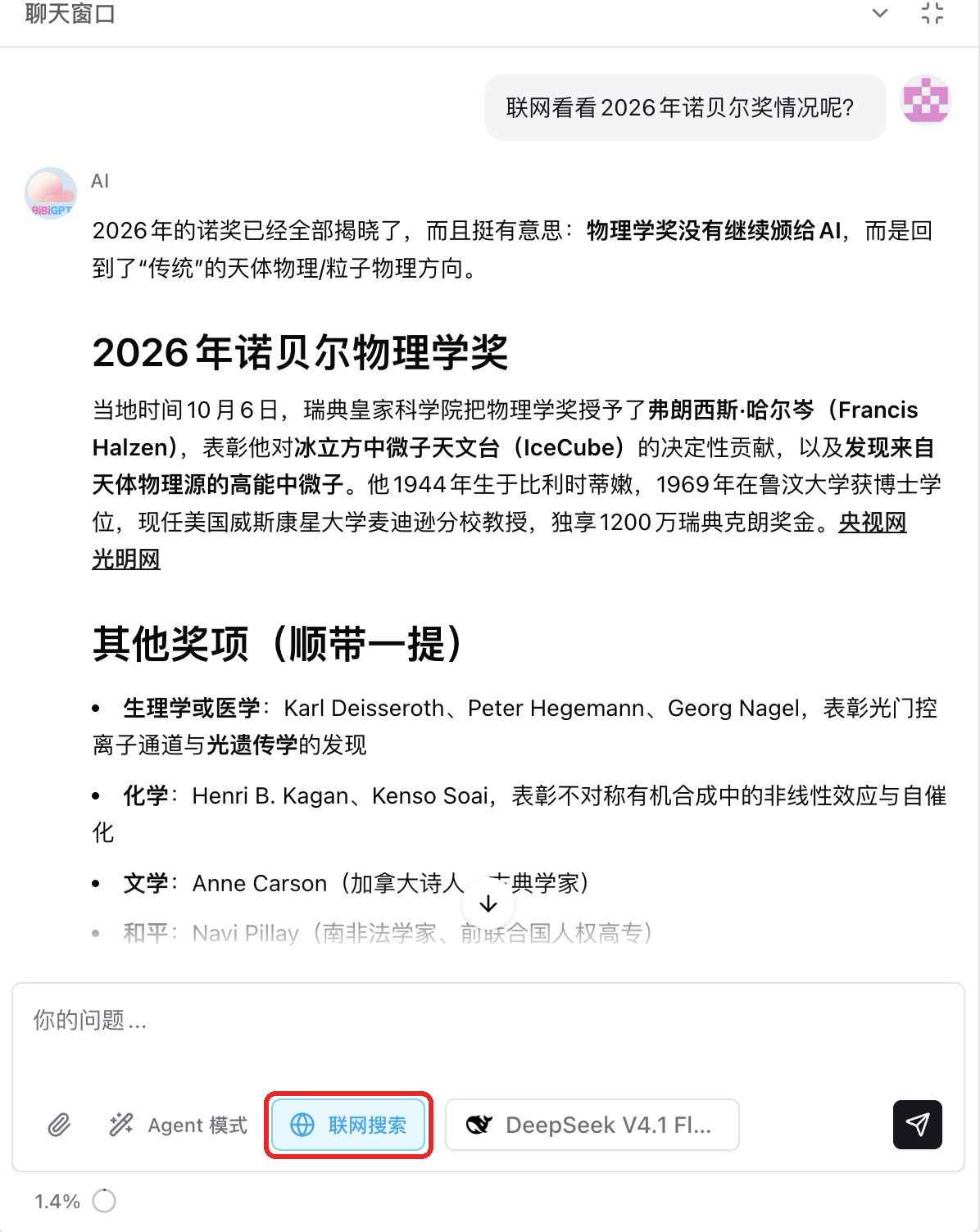
Where: open any summary → AI chat → the “Web search” toggle next to the input box.
Once it’s on, for news, figures and material the video doesn’t cover, the AI searches the web first and then answers together with the video’s content. Above the answer you can see what it searched for, and the answer carries source links you can click to check. The toggle remembers your choice, so it stays on next time.
Screenshot: BibiGPT · AI chat with “Web search” on, asking about the 2026 Nobel Prizes; the answer cites CCTV and Guangming Online directly
Each successful search uses 1 credit (or 1 minute of time); failed searches are free. For questions that don’t need fresh information, switch it off and everything works as before. If a search finishes but the answer never shows up, you’ll see a notice under the message with an “Answer again” button — one tap and it picks up from there.
Wherever the video stops, the AI can now look one step further for you.
🛠️ Put it to work
Course Notes: summaries shaped for review
The default summary leans toward an overview, which is great for a quick sense of what a lecture covered. But when you actually need to review or prep for an exam, you still have to reorganize the key points yourself.
Where: on the home page, click “Add new link or upload file” (or press ⌘+J) → the ⚙️ “Settings” button in the dialog → switch to “Custom Summary” → pick “Course Notes” from the templates at the bottom of the form → “Save”.
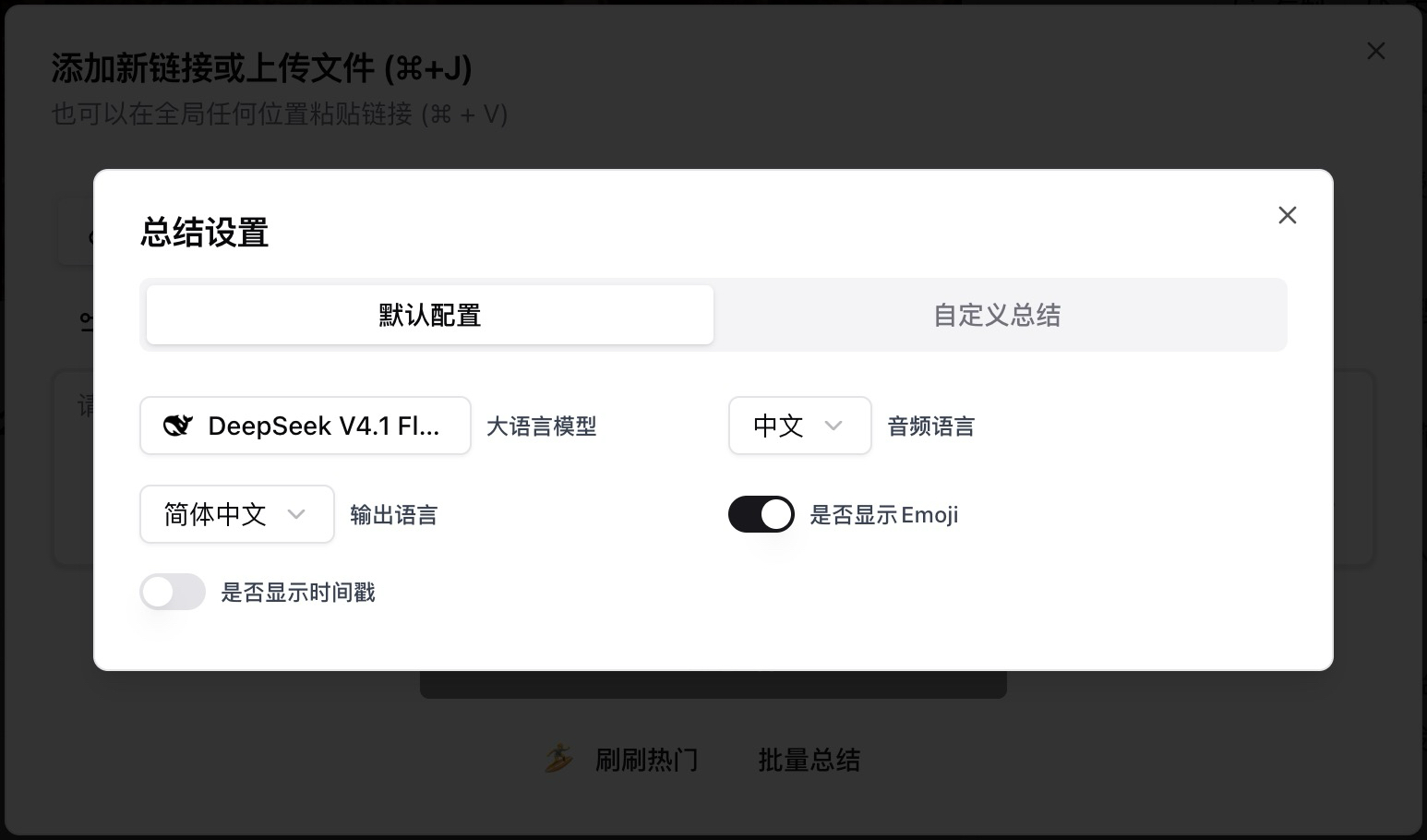
Screenshot: BibiGPT · “Add new link” dialog → “Settings”, switch to “Custom Summary” on the right
If a video’s summary is already open, you can also click ✨ “New” at the far right of the tab row above the summary — it opens the same form. Click “Save & re-summarize” and the current item is regenerated in the Course Notes format right away.
“Course Notes” is first in the template list; one click fills in the prompt and the name. It organizes each lecture by knowledge framework, points the teacher stressed, formulas and steps, key timestamps, and self-check questions. Once saved, every lecture comes out in this format, so a whole semester of classes stays neat side by side.
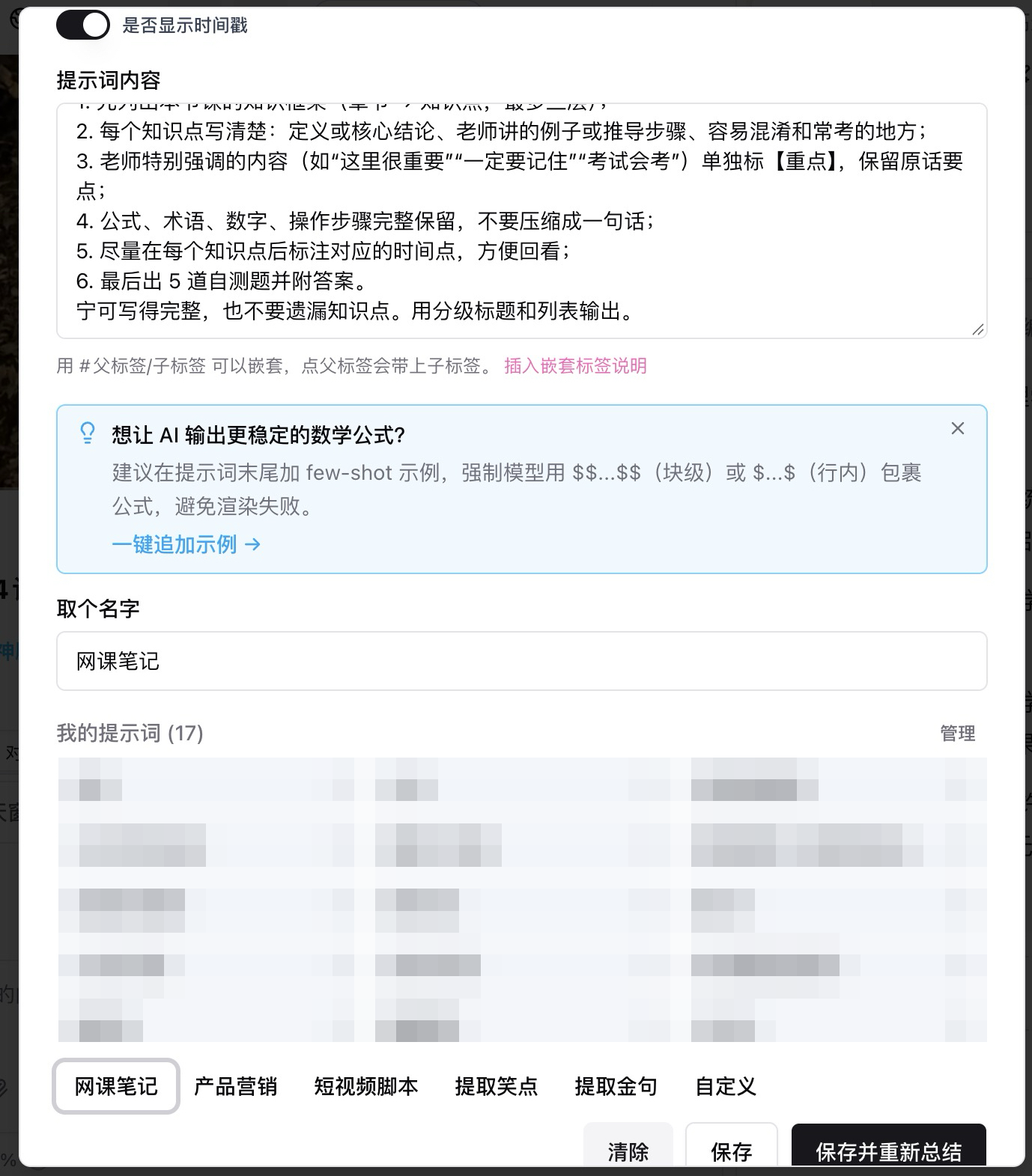
Screenshot: BibiGPT · click the “Course Notes” template at the bottom of the form to fill in the prompt and name (“My prompts” list blurred)
If you haven’t created a custom summary yet, opening an online course, open lecture or talk video will show “Want study notes you can review directly?” below the summary — click “Try Course Notes →” to start a new one with the template already loaded.
Themed PDFs are now real text
Exporting a themed PDF used to mean capturing the page as one long image and dropping it into a PDF: blurry when zoomed, no way to copy a paragraph or search a word, and now and then a line of text got split across two pages.
Where: open a summary → Export → pick any of the WeChat, Magazine, Paper or Dark themes → export PDF.
These themes now export real text: you can select and copy it, search with Ctrl+F, and it stays sharp at any zoom. Pages break between lines, so no line gets cut in half, and page numbers and bookmarks come built in. Long articles with images also export much faster — from over ten seconds down to a second or two.
Summarize a multi-part Bilibili video
Tutorials and courses on Bilibili often hang dozens of parts under a single video. Previously a summary only covered the current part; to summarize the whole set you had to paste the links one by one.
Where: paste a multi-part Bilibili video link to summarize → a notice above the player says “This video has N parts” → click “Summarize all parts”.
It lists every part; tick the ones you want and summarize them in one batch. The notice only applies to multiple parts under the same video — a single video inside a Bilibili collection isn’t multi-part, so it won’t appear. Links copied straight from Bilibili’s new collection pages are now recognized too.
⚡ Read faster
MiniMax M3.1 Flash for audio/video summaries
For everyday videos and podcasts, you want a summary model that’s quick and good enough.
Where: open bibigpt.co → on any summary page, tap the model name at the top to open the audio/video summary and chat model picker → search “minimax”.
The MiniMax group adds Minimax: M3.1 Flash, marked New, alongside M3 and M2.7. Its strength is speed, which suits a first pass over everyday summaries; visual analysis can use it too. See the MiniMax Open Platform model overview.
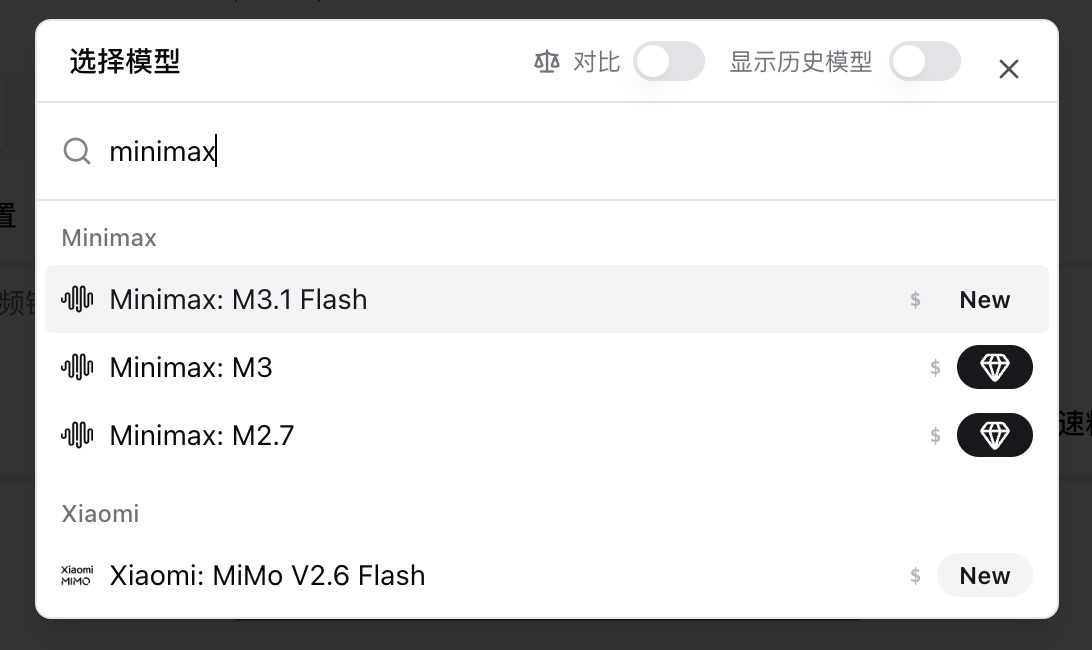
Screenshot: BibiGPT · search minimax in “Choose a model”; the new M3.1 Flash is marked New
Other recent improvements
- AI polishing for very long articles and lectures now runs 8 paragraphs ahead of wherever you’re reading, so even at 2× you won’t catch up to unpolished text — no more clicking “Polish all”
- The web app can download Baidu Netdisk files up to 50MB directly; larger files will point you to the desktop app
- The China-site sign-in page in the desktop app now offers quick WeChat login
- The currency dropdown on the pricing page lets you view prices in your local currency, and the page states which currency you’re actually charged in; the annual plan’s “per day” figure is now based on the price you actually pay
Wrap-up
This issue, start by turning on “Web search” in AI chat and asking something the video doesn’t cover, to see how it ties the video together with material from the web. If you’re taking online courses, create a “Course Notes” custom summary and your next lecture will come out ready for review. And if you export PDFs, try selecting the text in your next one.
Ideas or issues? Leave us a note on the WeChat Official Account “魔法司”.
- 🌐 Website: bibigpt.co
- ✨ Explore features: bibigpt.co/features
- 🔌 Browser extension: bibigpt.co/apps/browser
- 💻 Desktop app: bibigpt.co/download/desktop
- 📱 Mobile app: bibigpt.co/app
—— BibiGPT Team
Popular tools
More in this series
- AI Competitive Intelligence Workflow: Build Industry Monitoring with BibiGPT Video Summaries
- Lessons From Shipping BiliGPT: Two Cold-Start Growth Tactics Behind a GPT-3 Side Project
- [BibiGPT Growth Series] Episode 1 | How AI Summaries for Bilibili Were Born
- BibiGPT Advanced Guide 2026: Download + AI-Summarize Videos from WeChat Channels, RedNote, TikTok, and Enterprise Intranet Sites
- Chat with Any Video: How to Ask AI Questions About Videos Instead of Watching the Whole Thing (2026)
Zobacz wszystkie artykuły (4) w temacie Podsumowanie wideo z AI →