
How to Create Meeting Minutes from Video Recordings with AI: BibiGPT Guide 2026
The complete 2026 guide to AI-powered meeting minutes: use BibiGPT to automatically extract decisions, action items, and key moments from Zoom or Teams recordings, then sync to Notion, Obsidian, or Lark in one click.
How to Create Meeting Minutes from Video Recordings with AI: BibiGPT Guide 2026
The meeting ended, the recording is saved, but nobody wrote the minutes — a scenario every knowledge worker knows well. With BibiGPT, you paste a meeting recording link or upload a video file, and within 30 seconds you get structured meeting minutes that include decisions made, action items with owners, and clickable timestamps — ready to sync to Notion, Lark, or Obsidian.
AI Chapter Summary Preview
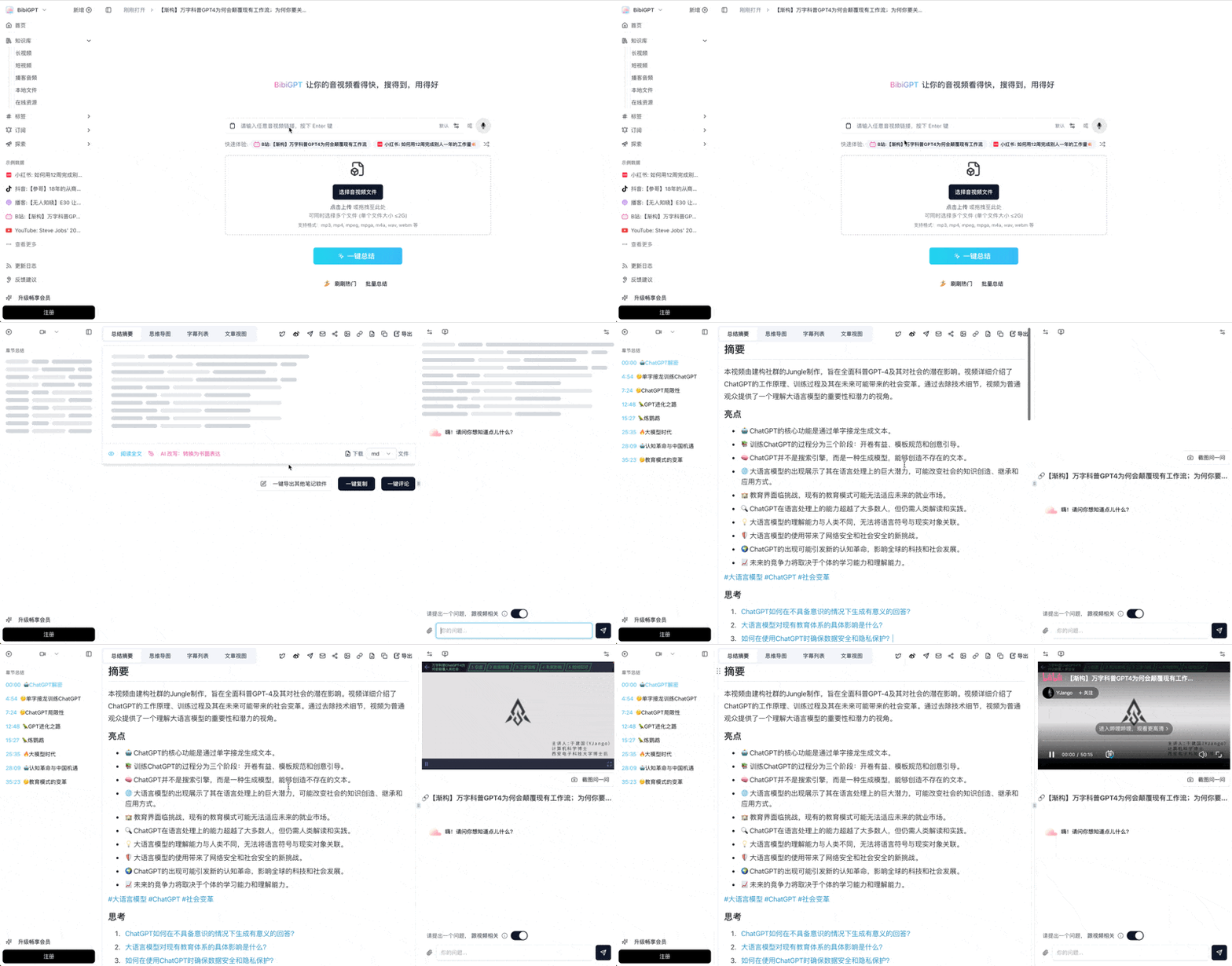
Bilibili: GPT-4 & Workflow Revolution
A deep-dive explainer on how GPT-4 transforms work, covering model internals, training stages, and the societal shift ahead.
Want to summarize your own videos?
BibiGPT supports YouTube, Bilibili, TikTok and 30+ platforms with one-click AI summaries
Try BibiGPT FreeTable of Contents
- Why Meeting Minutes Always Get Delayed
- The Complete BibiGPT AI Meeting Minutes Workflow
- Step 1: Upload or Link Your Meeting Recording
- Step 2: Choose a Meeting Minutes Template
- Step 3: AI Generates Structured Minutes Automatically
- Step 4: Sync to Notion, Lark, or Obsidian
- Step 5: Ask Follow-Up Questions with AI Chat
- Advanced Tips for Professional-Grade Minutes
- FAQ
- Conclusion: Turn Every Meeting into Organizational Knowledge
Why Meeting Minutes Always Get Delayed
Direct answer: Traditional meeting minutes rely on manual note-taking, which takes 30–60 minutes after a 1-hour meeting and is prone to omissions. With BibiGPT's AI video summarization applied to meeting recordings, you compress that process to under 5 minutes and get a timestamped structured document.
Knowledge workers spend over 21 hours per week in meetings on average (Atlassian, 2023), yet fewer than 20% of meetings produce written records. The consequences are familiar:
- Decision amnesia — consensus reached in the meeting is remembered differently a week later
- Lost action items — no one knows who is responsible for what or when it is due
- Information silos — colleagues who missed the meeting rely on secondhand verbal accounts
- Accountability gaps — when problems arise, there is no record of the original decision context
AI meeting minutes aren't just "writing notes faster." They transform every meeting into searchable, traceable, actionable organizational knowledge.
The Complete BibiGPT AI Meeting Minutes Workflow
Direct answer: BibiGPT supports Zoom, Microsoft Teams, Google Meet, Lark, local video files, and cloud storage sources. The four-step workflow — upload recording → select template → AI generates minutes → sync to your note tool — requires no manual transcription and handles mixed-language meetings.
Here is the full walkthrough for individuals and team administrators.
Step 1: Upload or Link Your Meeting Recording
BibiGPT accepts meeting recordings from all major collaboration platforms:
Online meeting platforms:
- Zoom cloud recordings — copy the recording link and paste it into BibiGPT
- Microsoft Teams — download the MP4 from Teams and upload locally
- Google Meet — recordings saved to Google Drive can be linked directly
- Lark (Feishu) meetings — paste the Lark cloud document recording link
Local video files:
- Supports MP4, WebM, MXF, MOV, and other mainstream formats
- The BibiGPT desktop app supports drag-and-drop upload — drag a file directly onto the interface
Folder monitoring automation (advanced): If you use OBS, ScreenFlow, or a system screen recorder, BibiGPT's desktop folder monitoring feature can watch a folder and automatically queue new recordings for AI summarization — achieving a zero-touch meeting-to-minutes pipeline.
For recordings stored in cloud drives, BibiGPT integrates with Dropbox, Box, and other services. See the cloud drive video-to-text workflow guide for setup details.
Step 2: Choose a Meeting Minutes Template
Direct answer: Meeting minutes quality depends on the prompt template. BibiGPT includes built-in templates for common meeting types and lets you save personal templates as defaults — so your preferred format is applied automatically every time you open a new recording.
Click "Custom Summary" and select or enter the prompt that fits your meeting type:
General meeting minutes prompt:
Summarize this meeting recording as structured minutes including:
1. Meeting metadata (date, attendees, topic)
2. Discussion summary by agenda item
3. Key decisions made (with supporting rationale)
4. Action items (owner + deadline)
5. Suggested agenda items for next meeting
Product review meeting prompt:
Format as a product review summary:
- Feature/requirement discussion outcomes
- Technical decisions made
- Priority and timeline commitments
- Open issues list (Blockers / Risks)
Use BibiGPT's pin custom summary as default feature to set your most-used template as the default — any meeting recording you open will automatically summarize using that template without manual selection.
Step 3: AI Generates Structured Minutes Automatically
After clicking Summarize, BibiGPT runs through four stages:
- Speech recognition — automatically transcribes audio with support for mixed Chinese/English
- Speaker identification — labels different speakers (ideal for multi-person meetings)
- Structure extraction — extracts agenda items, decisions, and action items per your template
- Timestamp annotation — attaches clickable video timestamps to key information for easy recall
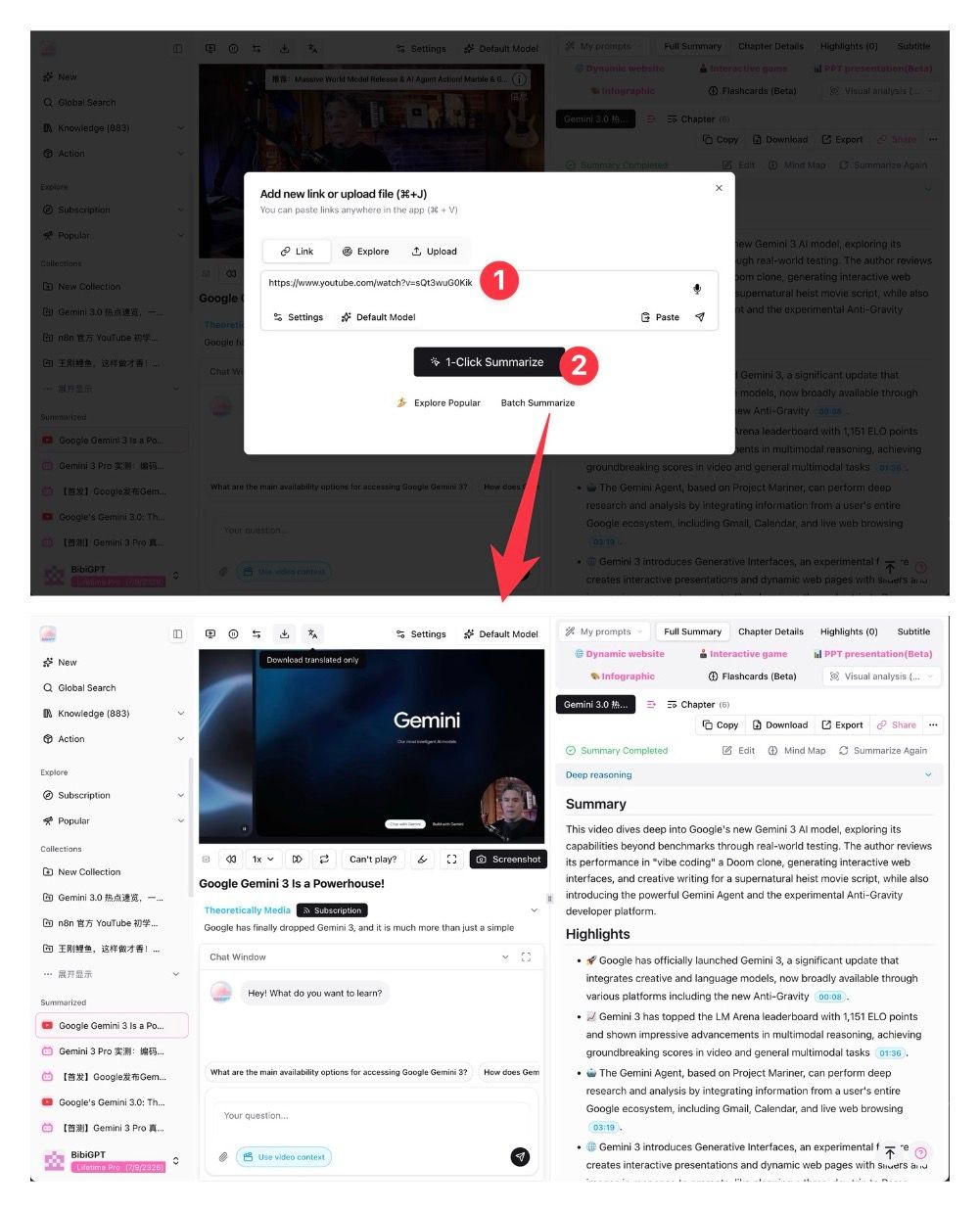 BibiGPT AI meeting recording chapter summary
Once generated, you can use BibiGPT's AI meeting video to document feature to query any decision point. The AI responds with clickable timestamps that jump directly to the relevant moment in the recording.
Step 4: Sync to Notion, Lark, or Obsidian
Direct answer: BibiGPT exports meeting minutes to 10+ note-taking tools including Notion, Obsidian, Lark, Readwise, and SiYuan, or as Markdown/PDF for manual import. Configuration takes under 2 minutes per tool.
Sync to Notion:
- Go to BibiGPT Settings → Note Integrations and enter your Notion API key
- After minutes are generated, click Export → Send to Notion
- Select the target database page — BibiGPT creates a structured page with timestamps and a link back to the source recording
Export to Lark Docs: Use the "Send to Lark" integration to push minutes directly into Lark cloud documents, enabling team collaboration and annotation within Lark's native interface.
Export to Obsidian: Export as Markdown and place the file in your Obsidian Vault folder. Combined with BibiGPT's desktop folder monitoring feature, you can build a fully automated recording → minutes → knowledge base pipeline.
Batch export for multiple meetings: For organizations running many meetings, BibiGPT supports bulk export as a ZIP archive containing Markdown minutes for each session — ideal for periodic archiving or building a team knowledge base.
Step 5: Ask Follow-Up Questions with AI Chat
After minutes are generated, BibiGPT's AI chat window acts as your "meeting memory assistant":
- "What priority changes did the team agree on for Q2 features?"
- "What did the CTO say about the infrastructure budget?"
- "Who is responsible for the user research, and what is the deadline?"
Every answer includes clickable timestamps that jump directly to the original spoken moment. This is especially valuable for attendees verifying specific details and absent colleagues getting up to speed quickly.
The chat window supports full-screen mode and free resize and drag, making it easy to work with minutes and video side by side in a split-screen setup.
Advanced Tips for Professional-Grade Minutes
Automatic translation for multilingual meetings
For meetings in mixed or fully foreign languages, BibiGPT's auto-translate on upload feature translates content during summarization, producing minutes in your preferred language without manual translation.
Export with speaker labels
Enable "Include speakers" in the export panel to label each statement with the corresponding speaker (Speaker A / Speaker B, or identified names). This is particularly useful for dispute resolution and accountability tracing.
Merge multiple recording segments
For long meetings recorded in multiple segments (such as all-day workshops), BibiGPT's multi-file merged summary accepts multiple video files in one upload and generates a single coherent set of minutes covering the entire session.
Custom transcription engine for specialized content
For meetings with heavy technical jargon, complex accents, or poor audio quality, switch to the ElevenLabs Scribe transcription engine in Settings (supports your own API key) for significantly higher recognition accuracy.
FAQ
Q1: Which meeting platforms does BibiGPT support?
A: BibiGPT accepts recordings from: Zoom cloud recording links, Microsoft Teams / Google Meet / Lark meeting downloads (MP4), local video files (MP4, WebM, MXF, MOV), and files synced from cloud drives including Dropbox, Box, Baidu Drive, and Aliyun Drive.
Q2: How long does it take to generate minutes for a 1-hour meeting?
A: Typically 1–3 minutes depending on file size and network speed — saving over 90% of the time compared with manual note-taking.
Q3: How do I verify accuracy in the generated minutes?
A: BibiGPT attaches clickable timestamps to each key point. Click any timestamp to jump directly to the original recording segment and verify the context. We recommend treating AI minutes as a high-quality first draft and reviewing critical decisions before sharing.
Q4: Does speaker identification work for large groups?
A: Speaker identification works best for meetings with up to 5 participants. For larger groups or recordings with overlapping speech, accuracy may decrease — manual review of speaker labels is recommended for high-stakes minutes.
Q5: Is my meeting recording data kept private?
A: BibiGPT processes recordings solely to generate content and does not use them for model training. Enterprise users should refer to the official privacy policy for full details.
Conclusion: Turn Every Meeting into Organizational Knowledge
Traditional meeting minutes are after-the-fact damage control. AI meeting minutes are a knowledge asset built in real time.
Using BibiGPT on meeting recordings doesn't just save manual effort — it turns every meeting's discussions, decisions, and commitments into searchable, citable, actionable knowledge that your team can use for months.
Trusted by over 1 million users, with more than 5 million AI summaries generated, BibiGPT is helping teams of all sizes transform meetings from time cost to knowledge compound interest.
Try BibiGPT with your next meeting recording and see the results in under a minute:
Start your AI-powered meeting workflow now:
- 🌐 Official Website: https://aitodo.co
- 📱 Mobile Download: https://aitodo.co/app
- 💻 Desktop Download: https://aitodo.co/download/desktop
- ✨ Learn More Features: https://aitodo.co/features
BibiGPT Team