
After Converting Dropbox Videos to Text: How to Take Notes and Organize Long-Term in 2025?
Learn how to turn Dropbox video transcriptions into long-term, reusable knowledge. See how BibiGPT unifies audio-video content from Dropbox, cloud drives, and video platforms into a single AI-powered summary workflow so you can watch faster, search better, and use content more effectively.
After Converting Dropbox Videos to Text: How to Take Notes and Organize Long-Term in 2025?
Over the past few years, more and more people have shifted their learning and work into video:
course recordings, meeting replays, Bilibili / YouTube tutorials, podcasts, online talks, internal training, and even casual screen recordings.
Dropbox already does an excellent job on one key piece of this puzzle.
You can handle video transcription, subtitle generation, and basic editing directly inside Dropbox. The workflow is lightweight, fast, and smooth — rare among cloud storage tools.
But as your library grows, a more practical question appears:
After a video is converted to text, how do you take notes and organize everything for long-term use?
This article focuses on that “after transcription” part of the story.
1. Dropbox’s Transcription Is Already Strong
Dropbox provides built-in video and audio transcription capabilities without complicated setup. You simply drop files into Dropbox and can quickly get editable text back.
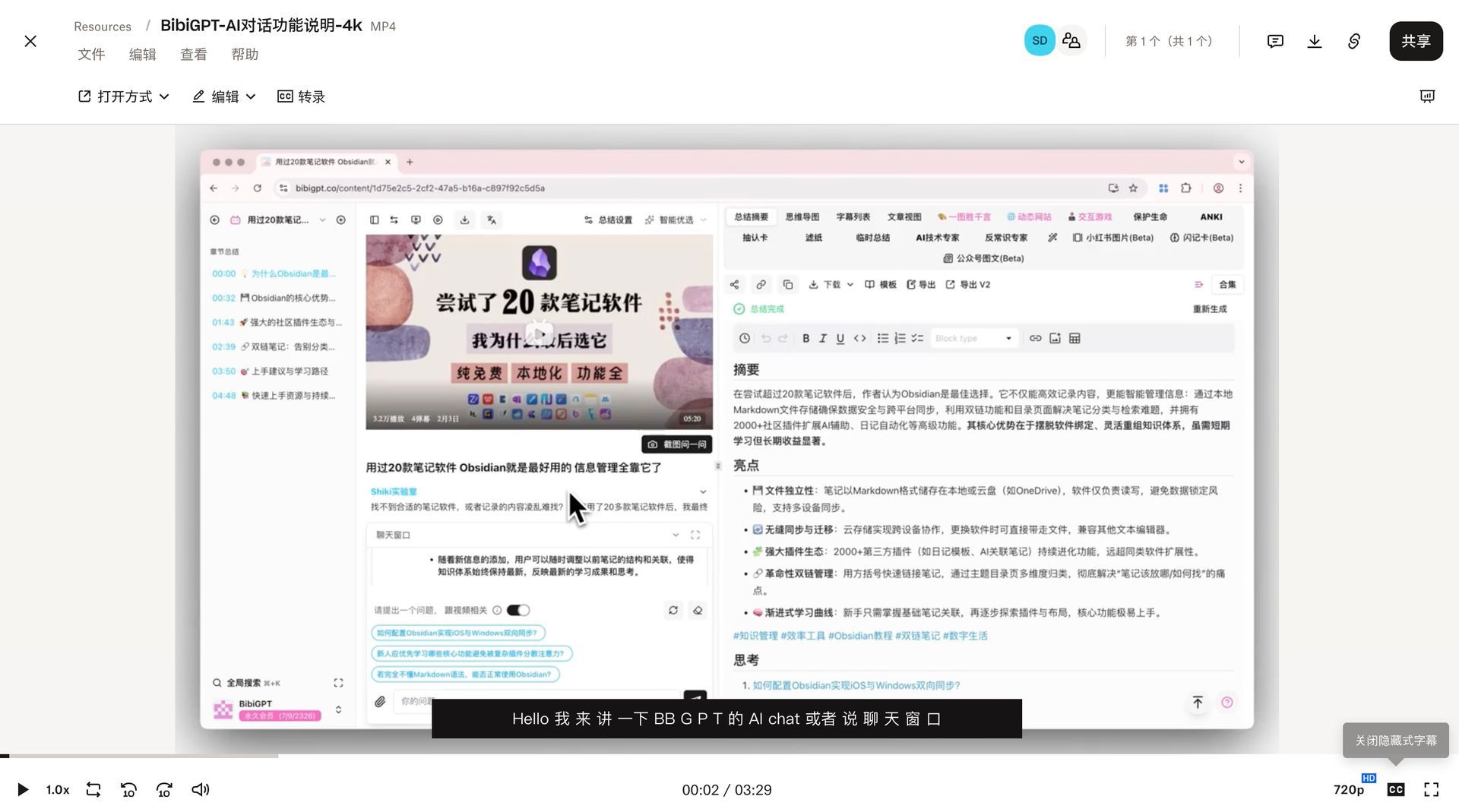 Dropbox transcription result interface
This feels great when quickly generating meeting minutes, turning course videos into searchable text, or converting team assets into collaborative documents. From the perspective of “can it transcribe?”, Dropbox is already good enough.
2. The Real Problem Is Not “Can It Transcribe?” but “What Happens After?”
When you only have a few videos, Dropbox’s native tools are more than enough. As time goes on, three shifts usually happen:
Video sources multiply beyond Dropbox. In reality, very few people live in a single ecosystem: team assets in Dropbox, courses and meetings in other cloud drives, public content on Bilibili or YouTube, local screen recordings, phone audio, and podcast files. Your content will not politely stay in one place.
Text gets scattered and becomes hard to manage. Even if everything is transcribed, the results tend to end up partly in Dropbox, partly in other cloud drives, partly on local disks, partly from streaming platforms. It becomes difficult to search everything in one place, classify content in a unified way, review systematically, or build a coherent note system.
Transcription ≠ Notes ≠ Knowledge. Transcription only turns audio into text. What really matters is structured key points, reusable conclusions, and artifacts you can revisit months later. That part is where most of the time and energy goes.
3. A Better Approach: Put Dropbox Transcriptions into a Unified System
If you want Dropbox to stay strong at transcription while your organization doesn’t fall apart, a practical strategy is: Let Dropbox handle storage and transcription, but let a higher-level system handle summarization, organization, and knowledge management.
This is where BibiGPT comes in. In BibiGPT, Dropbox is just one of many inputs. You can also unify content from Baidu Cloud, Aliyun Drive, Bilibili courses, local recordings, and more — all processed by the same workflow. For a full multi-source solution, see our 2025 Video-to-Text Complete Guide: Cloud Drives, Bilibili Courses, Screen Recordings, and Multi-Source Solutions (with BibiGPT Workflow).
4. BibiGPT’s Role: Not Replacing Dropbox, but Catching Its Output
BibiGPT is not here to “compete with Dropbox on transcription.” It answers a different question: How do you turn content from Dropbox, other cloud drives, video platforms, and local files into a unified, long-term knowledge system?
In this architecture, Dropbox focuses on reliable storage and syncing. BibiGPT focuses on AI-powered audio & video summaries, structured organization, and multi-platform export. Through the AI audio & video assistant toolkit, you can connect all your media into a single workflow built around “watch faster, search better, use content more effectively.”
5. Two Ways BibiGPT Works with Cloud Drives
Method 1: Connect Dropbox Directly and Process on Demand. Inside BibiGPT, you can connect Dropbox and pick the specific files you want to process.
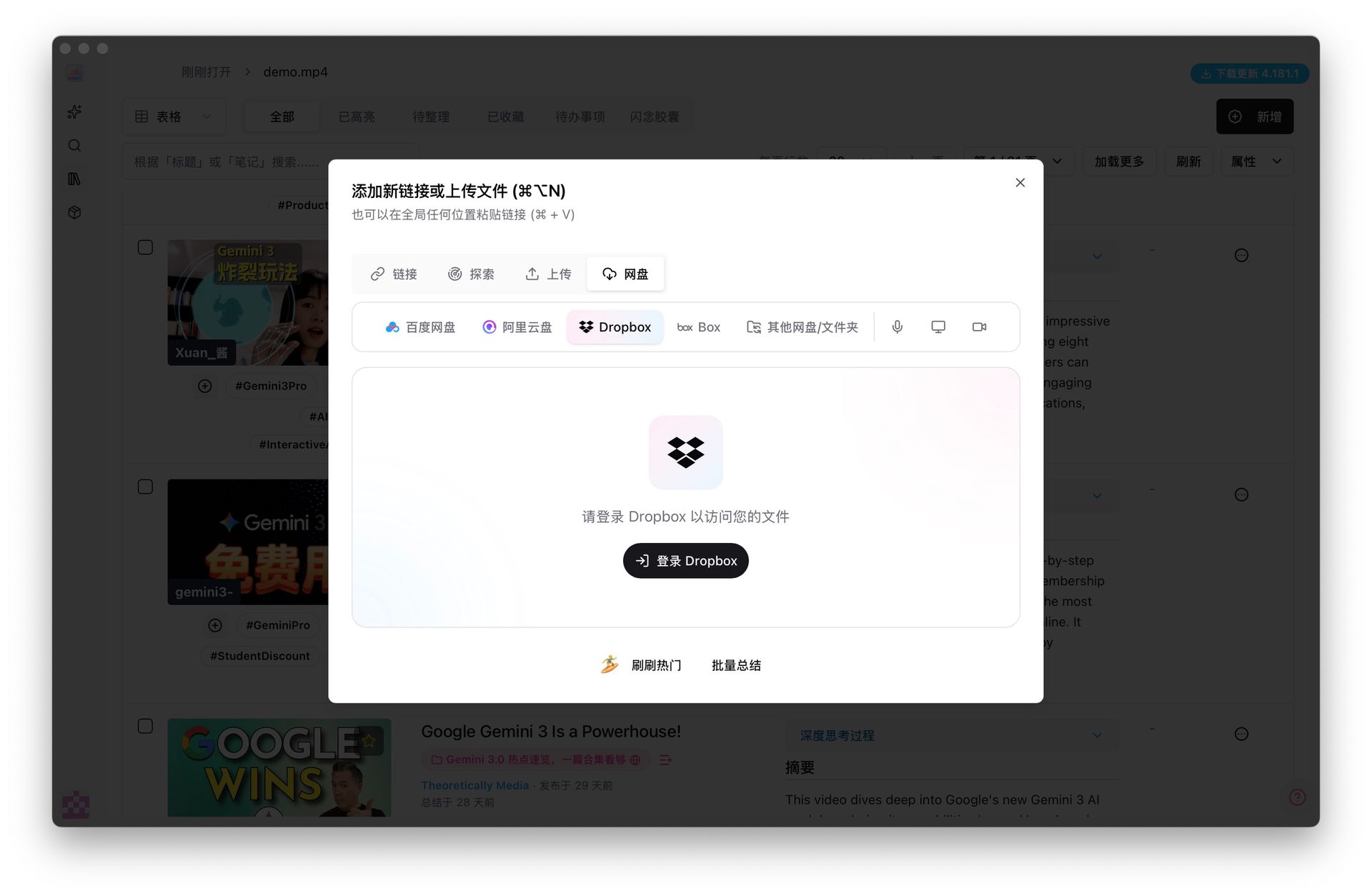 BibiGPT Dropbox entry interface
This suits scenarios like handling a specific video right now, precisely choosing which files to process, or keeping your existing folder structure intact.
Method 2: Monitor Sync Folders for Automated Processing. If you use the Dropbox sync client, you can let BibiGPT watch a local folder that stays in sync.
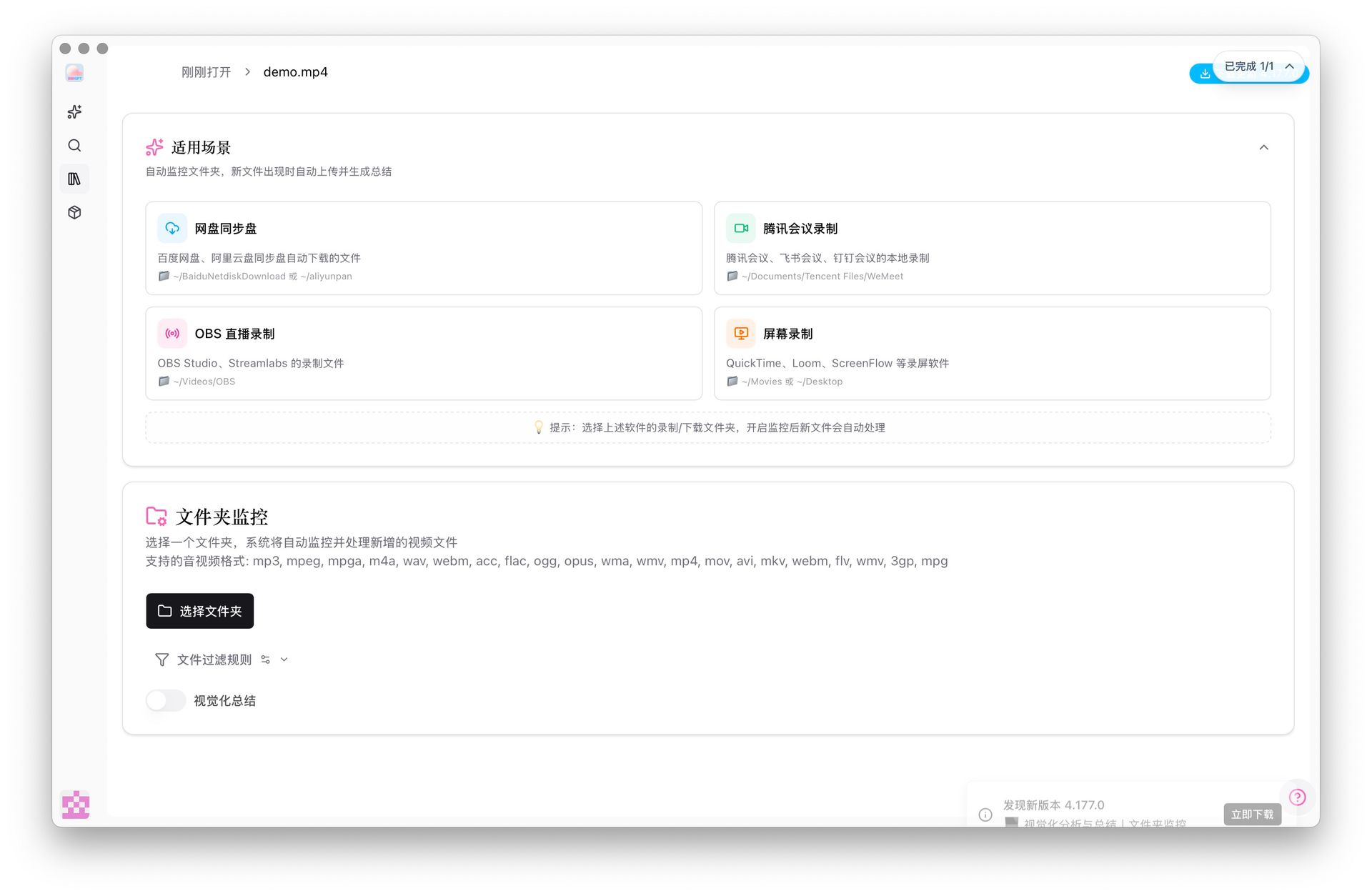 BibiGPT monitoring synced audio-video folders workflow
Whenever new videos appear, BibiGPT automatically uploads, transcribes, summarizes, and outputs a unified structured result. This is ideal for long-term, ongoing content accumulation.
6. Unified Workflow: Transcription Is Only the First Step
No matter which method you choose, BibiGPT follows the same pipeline:
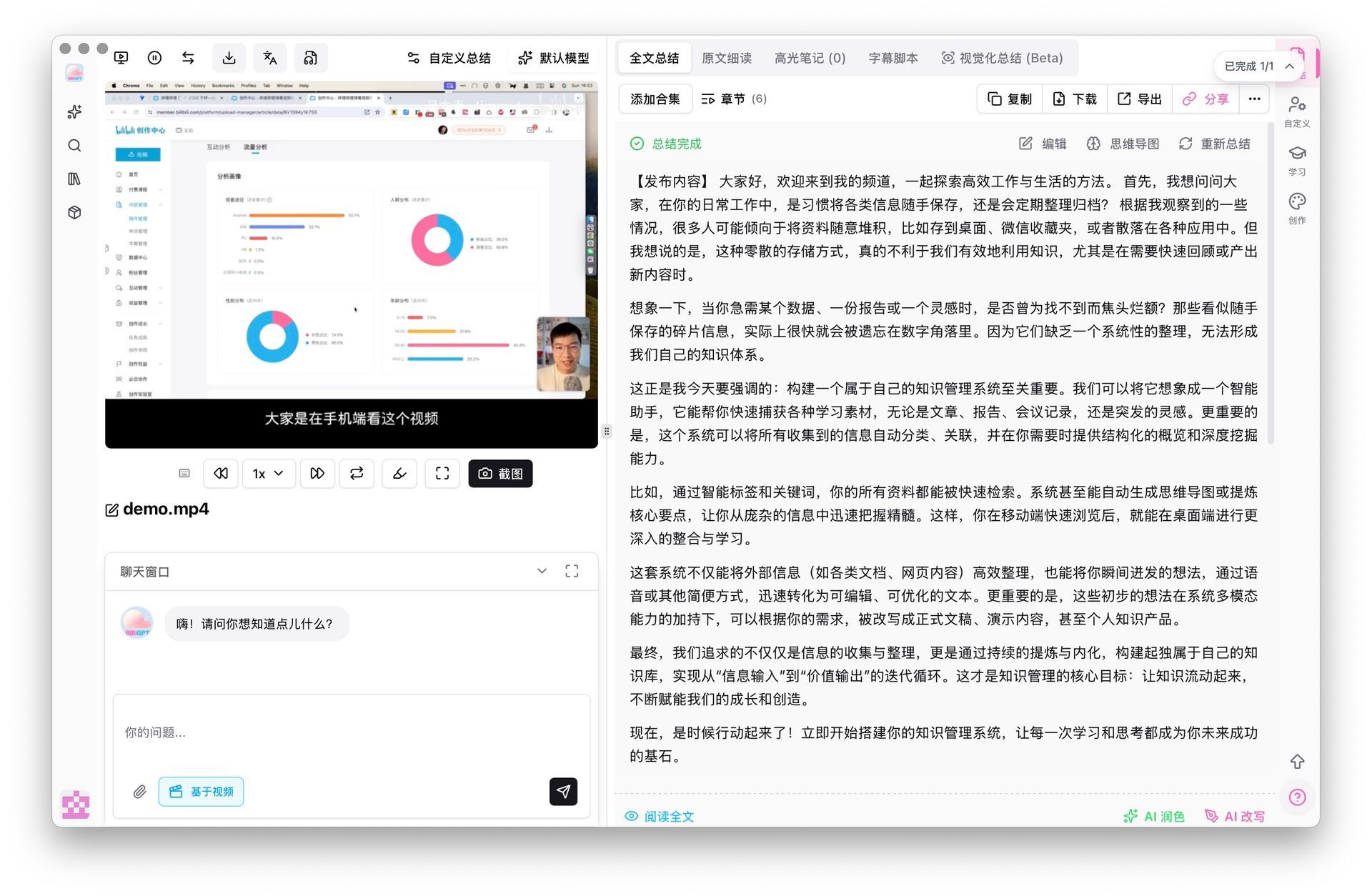 BibiGPT cloud drive transcription and summary dashboard
Upload → Transcription → Structured summary → Key takeaways → Reviewable output
The final result is more than raw text — it’s a note-ready structure you can drop directly into your existing knowledge system. You can then sync everything to Notion, Obsidian, or local folders so all your media ends up in one coherent place.
7. Why the Dropbox + BibiGPT Combo Feels Lighter Over Time
Putting Dropbox and BibiGPT together brings several clear benefits: all video sources ultimately flow into one organization entry point, content from different platforms ends up in a consistent structure, you can export to your favorite note-taking apps and file systems, and everything becomes searchable and easy to review months later. You don’t have to give up Dropbox’s native experience. You simply add one extra step after transcription — and that step pays off more and more as your library grows.
8. Completing the Picture with Baidu Cloud and Aliyun Drive
If you also use Baidu Cloud and Aliyun Drive, then Dropbox is just one piece in a broader multi-source puzzle. Together with this Dropbox article, you can also read How to Organize Notes After Converting Baidu Cloud Drive Videos to Text: An AI Audio-Video Summary Tool Guide and After Converting Aliyun Drive Videos to Text: How to Take Notes and Organize Long-term in 2025?. These three posts form a complete view of how to handle video-to-text workflows across multiple cloud drives using BibiGPT.
9. A Realistic Conclusion for 2025
By 2025, video-to-text itself is no longer the hard part. The real difficulty is: Videos keep piling up, but your notes stay messy.
Dropbox already does an excellent job at transcription. BibiGPT focuses on the next step: turning that text into durable knowledge. If you’re already using Dropbox, this combination helps you switch platforms less often, spend less time reorganizing the same content, and lose fewer important insights along the way.
Wrap-Up: Turn Dropbox Transcriptions into Real Knowledge Assets
If you only transcribe a few videos occasionally, Dropbox alone is fine.
But if you’re building a long-term learning pipeline and consolidating audio-video from many sources, adding an AI summary workflow like BibiGPT on top of Dropbox will feel much lighter in the long run.
Try BibiGPT today and turn your Dropbox video-to-text output into knowledge you can actually reuse.