What Tool Can Turn a Long YouTube Tutorial Into Timestamped Notes in Notion? (5 Tools Compared, 2026)

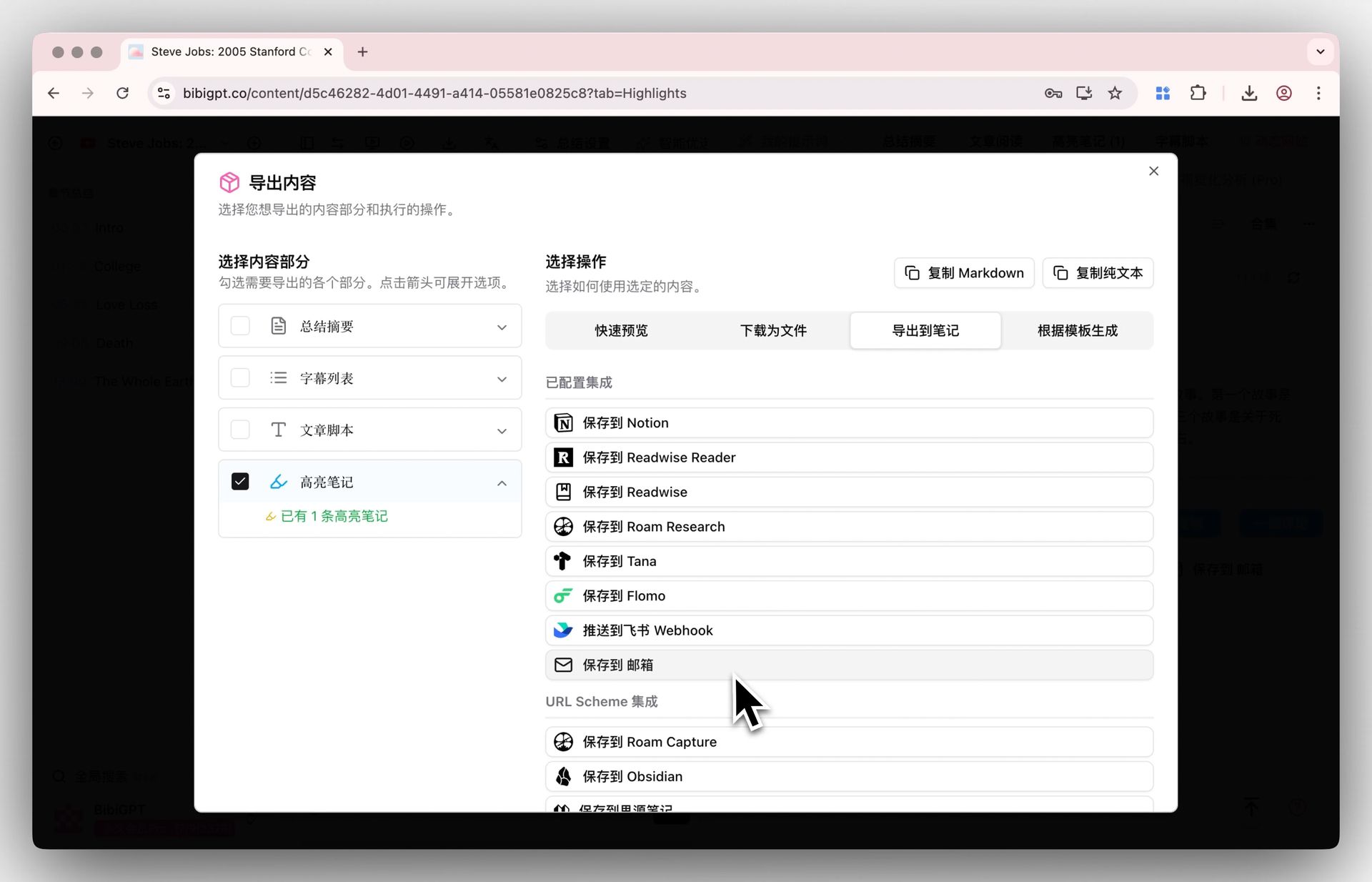
Quick answer: Use a YouTube summarizer that writes straight into Notion and keeps a timestamp on every key point. BibiGPT does this: connect Notion once, paste the tutorial link, click “Save to Notion”, and a new page lands in the database you chose with headings, key points and clickable timestamps, while the full transcript stays one click away. If you would rather take the notes yourself while watching, a browser extension such as Snipo or Flylighter captures timestamps into Notion by hand. BibiGPT is an AI audio and video summarizer; it also works for Bilibili, podcasts and local files.
Full disclosure: BibiGPT is our product. Other tools are described from their own pages as of November 19, 2026.
What tool can turn a long YouTube tutorial into timestamped notes in Notion?
There are two kinds, and the right one depends on whether you want the AI to write the notes or only to help you write them:
- AI summarizers with a Notion export (BibiGPT, SummarizeVideoToText): paste a link, get a structured page with timestamps. Best for long tutorials you cannot watch end to end.
- Note-taking extensions (Snipo, Flylighter): you watch, they capture the timestamp and a screenshot each time you add a note. Best when the act of writing is how you learn.
A Notion template (NotesTube) adds structure to either approach but does not write anything for you.
If the tutorial is longer than your attention span, let the AI write the first draft.
How do the tools compare?
| Tool | Who writes the notes | Timestamps | How it reaches Notion | Also works on |
|---|---|---|---|---|
| BibiGPT | AI, from the full transcript | On every key point, clickable | Official Notion connection; new page in the database you choose | Bilibili, podcasts, local files, 30+ platforms |
| SummarizeVideoToText | AI | Chapters | Notion connection | Video links |
| Snipo | You, while watching | Each note you add, plus screenshots | Browser extension, split view with Notion | YouTube, Udemy and other players |
| Flylighter | You, while watching | Each capture | Browser extension into a Notion database | Web pages and YouTube |
| NotesTube | You | Manual | A Notion template | — |
Sources: SummarizeVideoToText on Notion, Snipo, Flylighter docs, NotesTube template, BibiGPT YouTube to Notion.
Exported notes keep their headings and timestamps. Source: BibiGPT export.
How do you do it with BibiGPT, step by step?
A routine that takes about five minutes for a one-hour tutorial:
- Connect Notion once. BibiGPT uses Notion’s official authorization and only writes to the databases you select.
- Paste the YouTube link into BibiGPT and open the summary.
- Skim the key points. Each one carries the time it was said; click any of them to play that moment.
- Ask about the steps you will actually follow. “What command did they run before installing?” The answer links to the second it came from.
- Click “Save to Notion”. The page appears in your database with headings, key points and timestamps; tag it, link it to a project, move on.
Check the three steps you will copy, not all thirty.
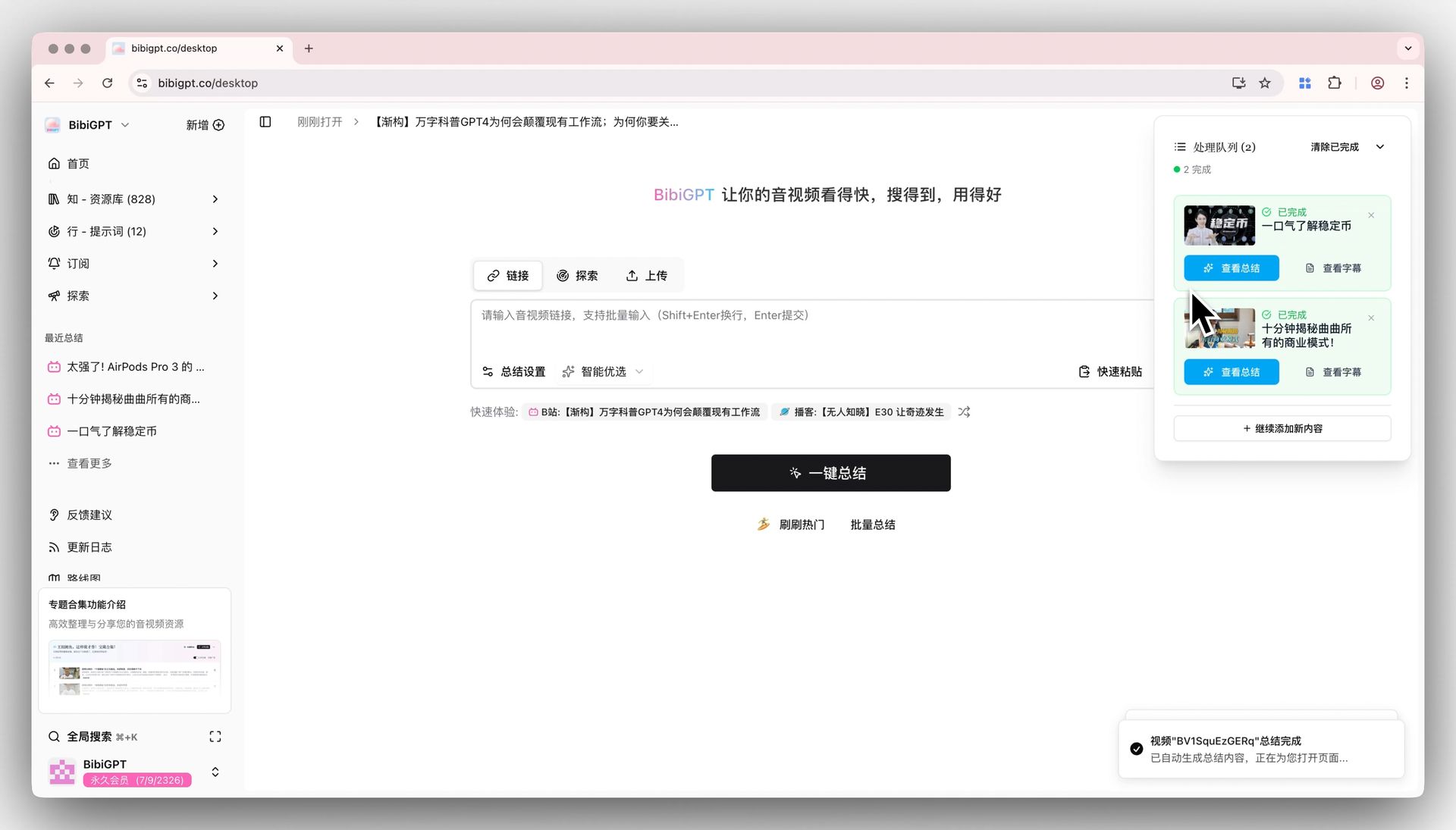
Each key point keeps its timestamp. Source: BibiGPT summary view.
The demo below shows the one-click summary that becomes the Notion page.
Why do timestamps matter more for tutorials than for talks?
Because you go back to a tutorial to redo a step, not to remember an idea. A note that says “configure the proxy” is useless without the exact second where the presenter typed the command. Timestamps on every point turn your Notion page into an index of the video: click, watch twenty seconds, copy the command.
The mind map view does the same for structure: each branch jumps back to its moment.
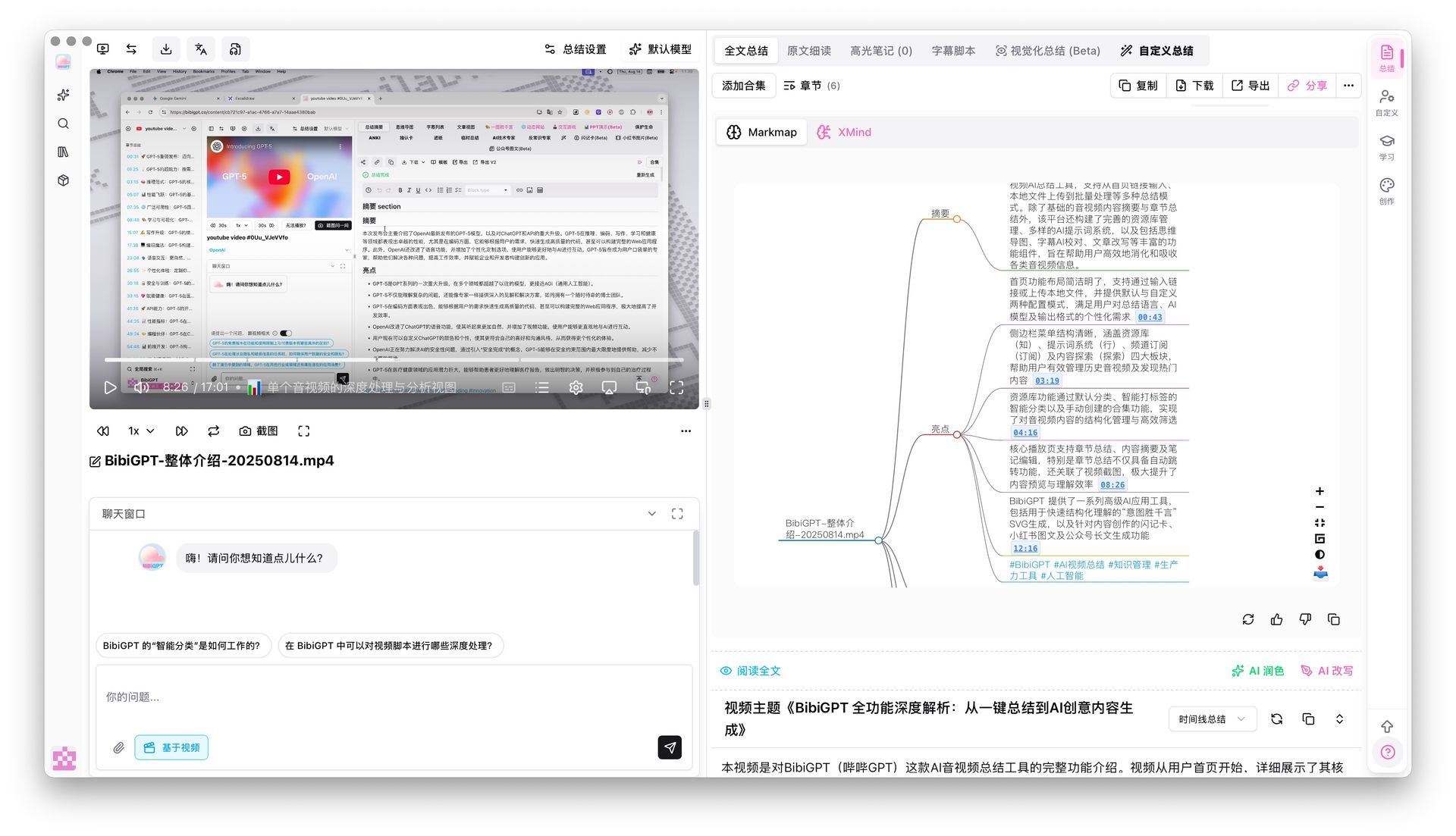
Every node jumps to its moment in the video. Source: BibiGPT mind map.
Chapters tell you where a topic starts. Per-point timestamps tell you where the command is.
When is a note-taking extension the better choice?
When the tutorial is short and writing is how you learn. Snipo and Flylighter keep you in control of every line and add screenshots, which is useful for UI-heavy tutorials. The trade-off is time: you still watch the whole video. Many people combine both: an AI summary for the overview and an extension for the two or three parts they practice.
For a broader learning setup across YouTube and Bilibili, see the Notion + BibiGPT workflow guide; if you only need the raw text, see the YouTube transcript timestamps guide.
FAQ
Can I save both the summary and the full transcript to Notion?
Yes. The summary is saved as the Notion page, and the full transcript can be downloaded as SRT or TXT from the same video.
Is it free?
BibiGPT is free to try with 120 minutes included. Re-exporting a video you already processed is cached and does not cost extra minutes.
Does it work for Bilibili or podcasts too?
Yes. The same “Save to Notion” flow works for Bilibili videos, podcast episodes and local audio or video files.
Turn your next tutorial into a Notion page: open BibiGPT YouTube to Notion.
Popular tools
More in this series
- Is Evernote v11 AI Enough in 2026? BibiGPT: A More Native Audio-Video Knowledge Management Solution
- KI-Wissensdatenbank aufbauen: BibiGPT x Notion / Obsidian Video- & Podcast 5-Schritt-PKM-Workflow (2026)
- Bauen Sie Ihr KI-Second-Brain aus Videos und Podcasts: Die 4-Schritte-PKM-Methode (2026)
- Turn One Video into 10 Content Formats: The Complete AI Video Content Repurposing Workflow for 2026
- AI Video Content Repurposing: Complete Pipeline from Long Video to Narrated Short Video (2026)
Alle 8 Beiträge zu Second Brain & Wissensmanagement ansehen →