
BibiGPT v4.345.1 Update: Android Launch, Playlist Picking, Chat Attachments, Export Variants
BibiGPT v4.345.1 ships an Android download landing page, selective playlist summarization for Bilibili, PDF/Excel/image attachments in chat, and two new batch export ZIP variants — a week all about giving you finer control.
BibiGPT v4.345.1 Update: Android Launch, Playlist Picking, Chat Attachments, Export Variants
Dear BibiGPT users,
We shipped a lot this week — and one keyword ties it all together: you get to pick. Pick your device (Android now has a dedicated landing page), pick the videos that matter (playlists are no longer "summarize everything"), pick the reference material (chat now accepts your own PDFs, spreadsheets, screenshots), pick the export format (batch ZIP stops dumping everything in one bag). Small changes on paper, meaningful friction reduction in practice.
Experience BibiGPT now
Ready to try these powerful features? Visit BibiGPT and start your intelligent audio/video summarization journey!
Get started👀 Quick View
Android Download Landing Page Goes Live
"Where do I download the Android version?" — we've heard this one a lot. Truthfully, the Android APK link used to be buried deep in the desktop client menu, Google Play isn't accessible for users in mainland China, and sharing the link to a friend meant explaining half a dozen steps first. Not great.
We now have a dedicated Android landing page at bibigpt.co/apps/android:
- One-click APK download — the primary button says "Install directly, no Google Play required", green, clear, zero friction
- Brand-ready presentation — tagline "Use compute to save brainpower" plus real in-app screenshots (summary list, leaderboard, AI video detail page) so users know what they're getting before installing
- Share-friendly — a single link works for friend recommendations, community referrals, and article citations without extra explanation
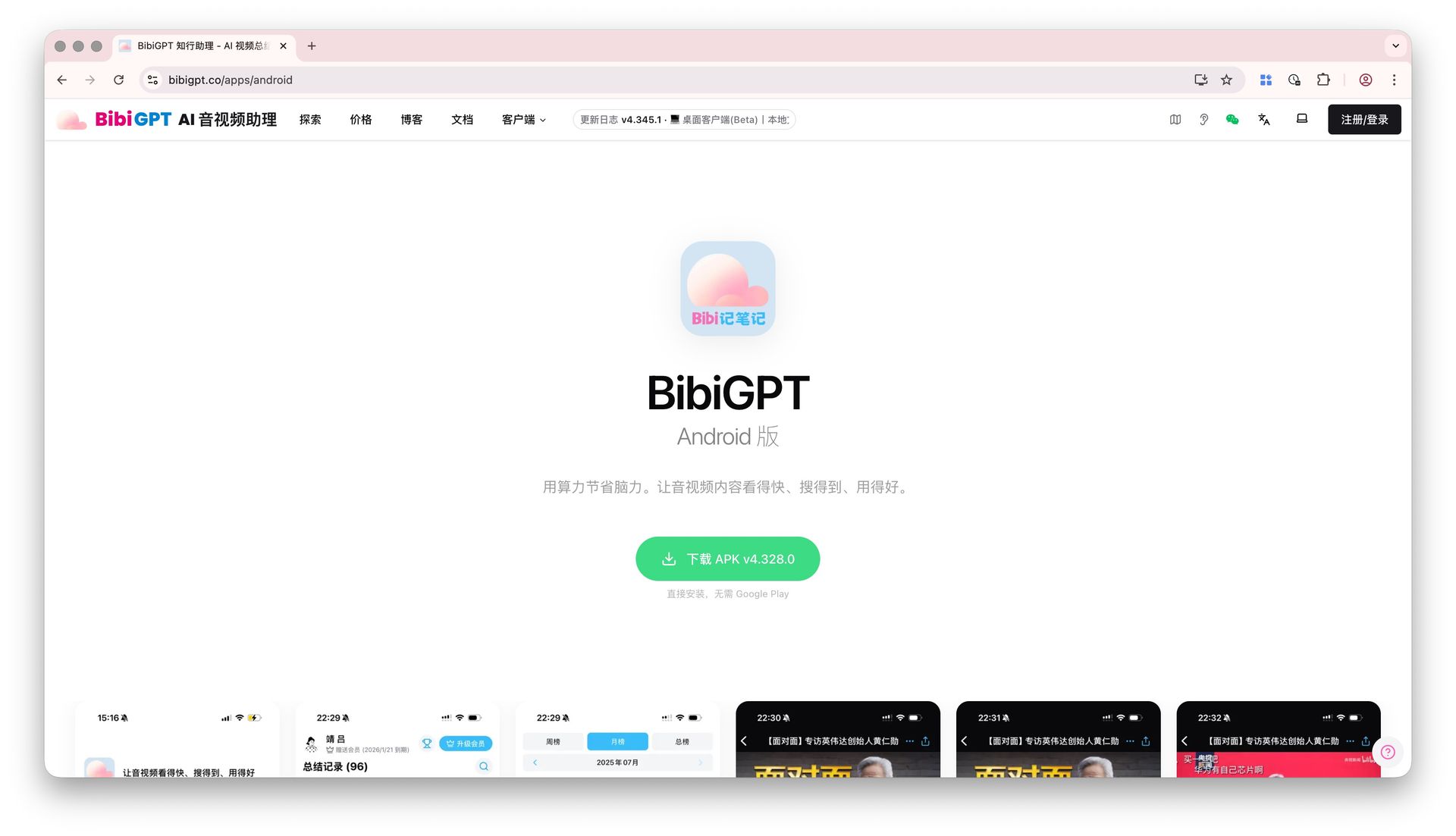 BibiGPT Android download landing page with green APK download button and in-app screenshots
If you know Android users who might benefit, just drop the link. The automated release pipeline is wired up too, so future APK versions will flow to this page automatically — no stale downloads.
🔍 Easy Search
Selective Playlist Summarization: No More "Summarize It All"
"I pasted a Bilibili playlist, dozens of videos, credits burned through in seconds — but I only actually wanted two or three of them." This complaint came in more than once.
The playlist ingestion flow now works differently: when you paste a Bilibili-style playlist URL, the system shows you all videos in the playlist first, each with a checkbox on the left. Pick only the ones you want. The "Summarize Selected" button in the top-right updates the count live (e.g. "Summarize Selected (2)") and only processes what you've checked.
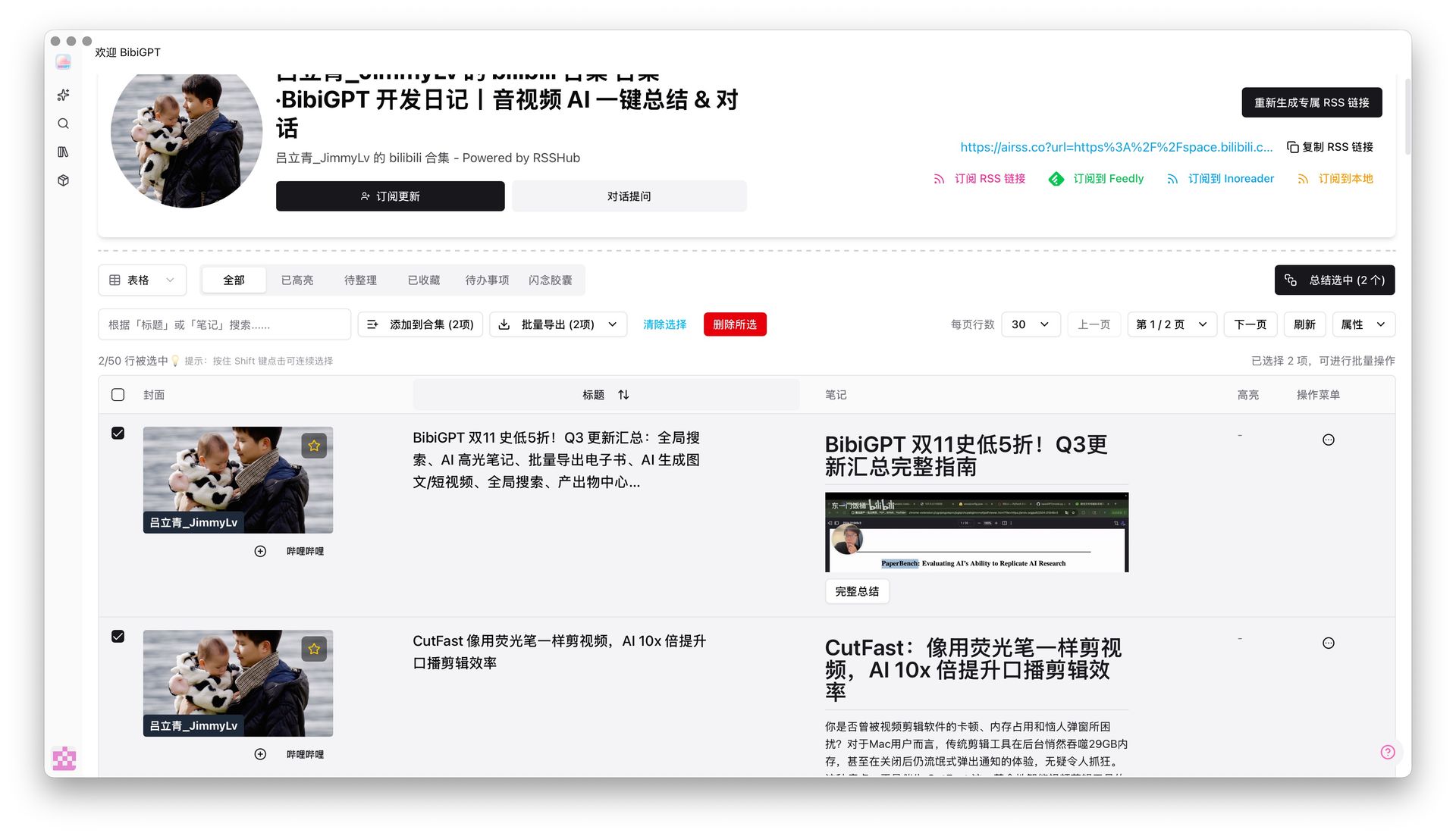 BibiGPT selective playlist summarization interface with checkboxes next to each video
Why flip the default from "summarize all" to "pick first"? Because in most playlists, only a handful of episodes are worth a deep read — summarizing everything wastes quota and buries the good stuff under irrelevant content. If you're the kind of user who takes deep notes or sends playlists into a Notion knowledge base, this change is for you (see Bilibili-to-Notion AI workflow for the full pipeline).
The same screen still offers "Add to Collection" and "Batch Export", so filter → summarize → archive all happens in one place.
See BibiGPT's AI Summary in Action
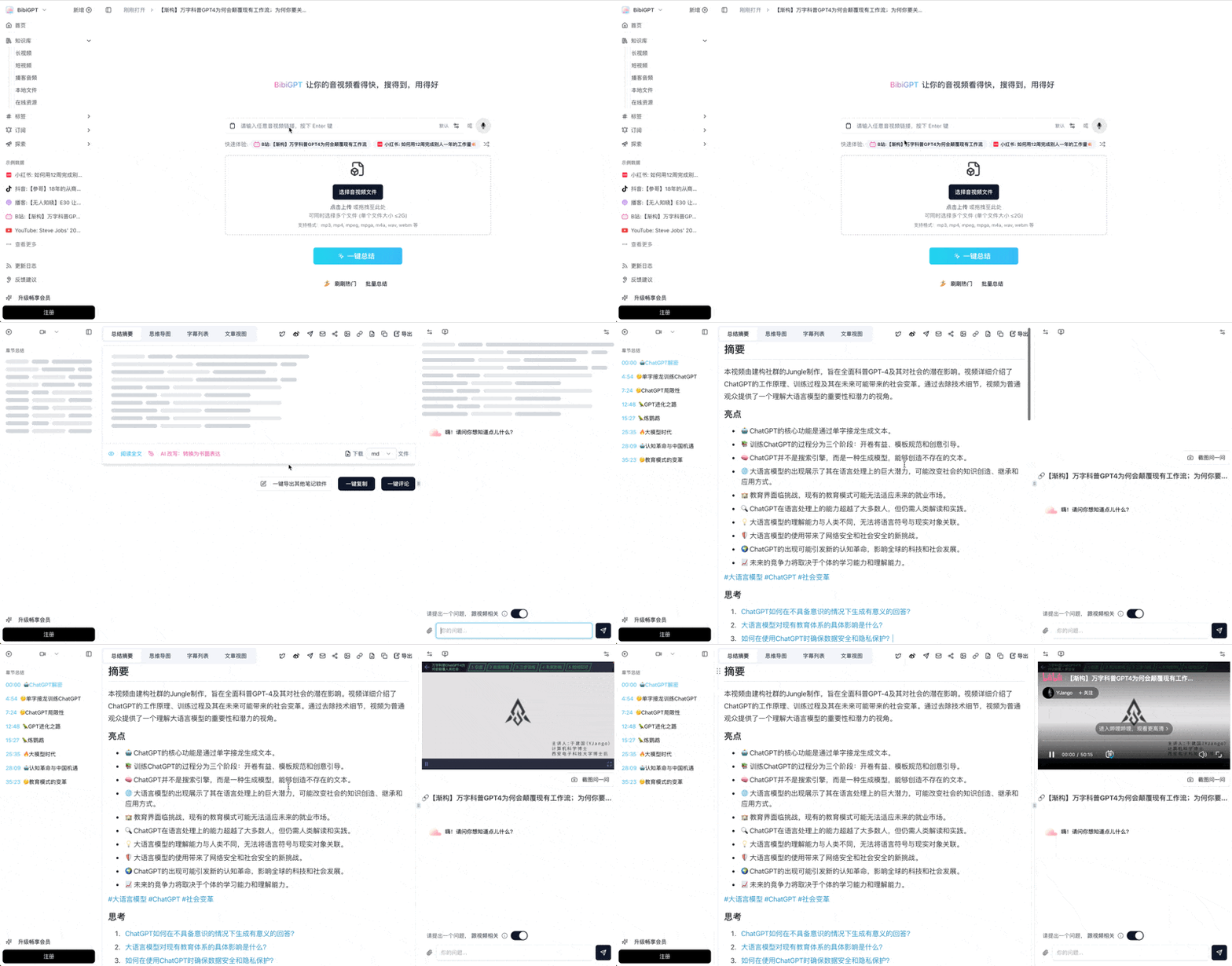
Bilibili: GPT-4 & Workflow Revolution
A deep-dive explainer on how GPT-4 transforms work, covering model internals, training stages, and the societal shift ahead.
Want to summarize your own videos?
BibiGPT supports YouTube, Bilibili, TikTok and 30+ platforms with one-click AI summaries
Try BibiGPT Free🛠️ Better Use
Chat Now Accepts Image + Document Attachments
You've probably hit this: you're chatting with BibiGPT about a video and want the AI to factor in your own PDF notes, an Excel sheet, or a related screenshot. Until now you could only paste in text — tables and images were out of reach. Restrictive.
Now both the video detail chat window and the follow-up conversation inside a custom summary accept attachments:
- Broad format support — images, common documents, and videos
- Clear previews — attachments appear as cards above the input, images render as thumbnails, each card has its own dismiss button
- Plays nicely with "Base on Video" — the AI cross-references the video transcript and your uploaded PDF / spreadsheet / UI screenshot in a single answer
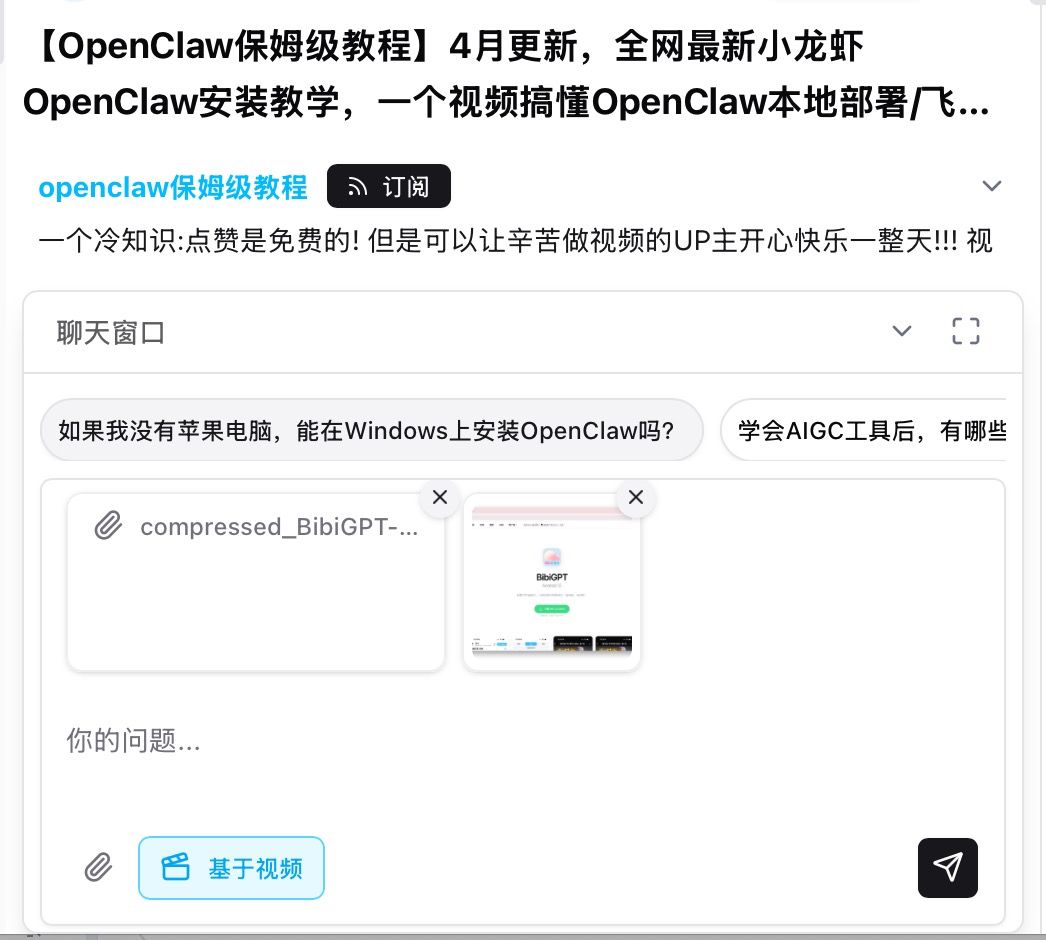 BibiGPT chat supports PDF and image attachments, shown as cards above the input
A concrete scenario: watching an earnings-call breakdown? Drop the company's actual 10-K PDF right into the chat — the AI can cite video commentary on one side while cross-checking the source PDF on the other. Research, studying, data reconciliation — anything that used to need three windows now fits in one conversation.
New "Summary Only" and "Article Only" Batch Export ZIPs
Previously, batch-exporting multiple videos produced a ZIP stuffed with summaries, articles, subtitles, and JSON — all mixed together. Only want the summaries? Or only the polished articles? Tough luck, unzip and sort manually.
Two new options now live in the "Batch Export" dropdown:
- Export ZIP (Summaries Only) — packs just the AI summary text for each record, ideal for users building a text-first knowledge base
- Export ZIP (Articles Only) — packs just the rewritten article content, ideal for creators pasting into blogs or newsletters
Both options carry a diamond icon in the menu (Plus member features). Together with existing Markdown / DOCX / EPUB / PDF options, batch export should cover just about any archiving need. If you're running a video-to-blog repurposing workflow, the "Articles Only" ZIP eliminates the manual sifting step.
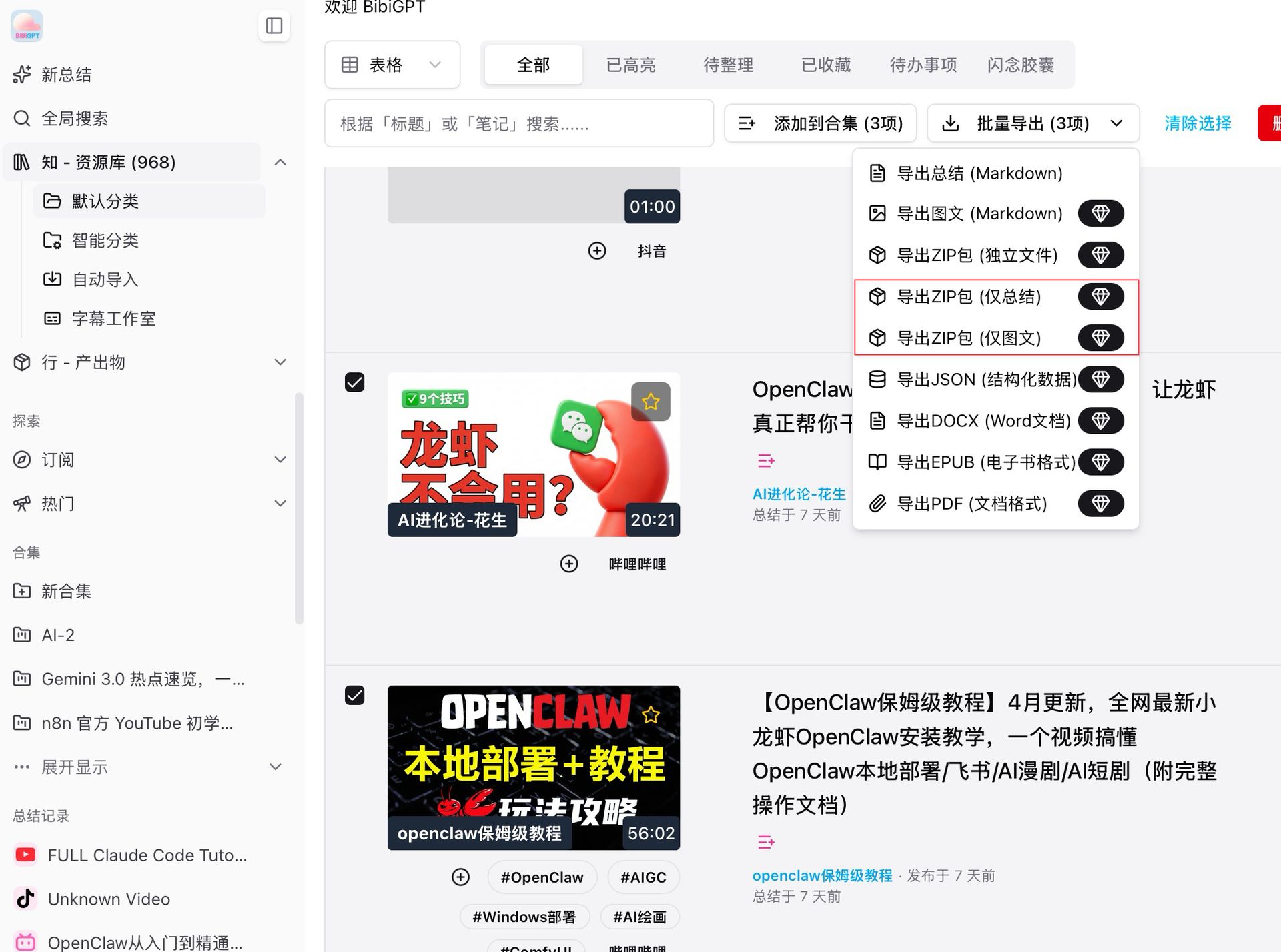 BibiGPT batch export dropdown with new "Summaries Only" and "Articles Only" ZIP options
More Recent Improvements
Beyond the four headline features, there's one desktop-side change worth calling out on its own:
- Desktop folder watcher auto-processing — point the desktop client at a folder and any new file lands in the processing queue automatically, multiple folders supported at once. Especially useful for podcast archiving and bulk study-material processing where you'd otherwise be dragging files in one by one.
Have feedback or ideas?
We value your input! If you encounter issues or have suggestions, please let us know anytime.
Submit feedbackSummary
This week is about giving you options — Android gets its own entry point, playlists let you pick, chats let you bring your own context, and batch export lets you pick a format. Combined with the Subtitle Studio overhaul, supplementary material uploads, and folder watching, the "Quick View / Easy Search / Better Use" path is now noticeably more granular.
Start your AI efficient learning journey now:
- 🌐 Official Website: https://aitodo.co
- 📱 Mobile Download: https://aitodo.co/app
- 💻 Desktop Download: https://aitodo.co/download/desktop
- ✨ Learn More Features: https://aitodo.co/features
Experience BibiGPT now
Ready to try these powerful features? Visit BibiGPT and start your intelligent audio/video summarization journey!
Get startedEnjoy!
BibiGPT Team